
Tip & Trick
Mastering SharePoint can transform your team’s collaboration—but where do beginners start? These eight actionable tips cut through the complexity and deliver immediate productivity gains, whether you're managing documents, automating workflows, or simplifying team communication.
Master SharePoint Home site navigation
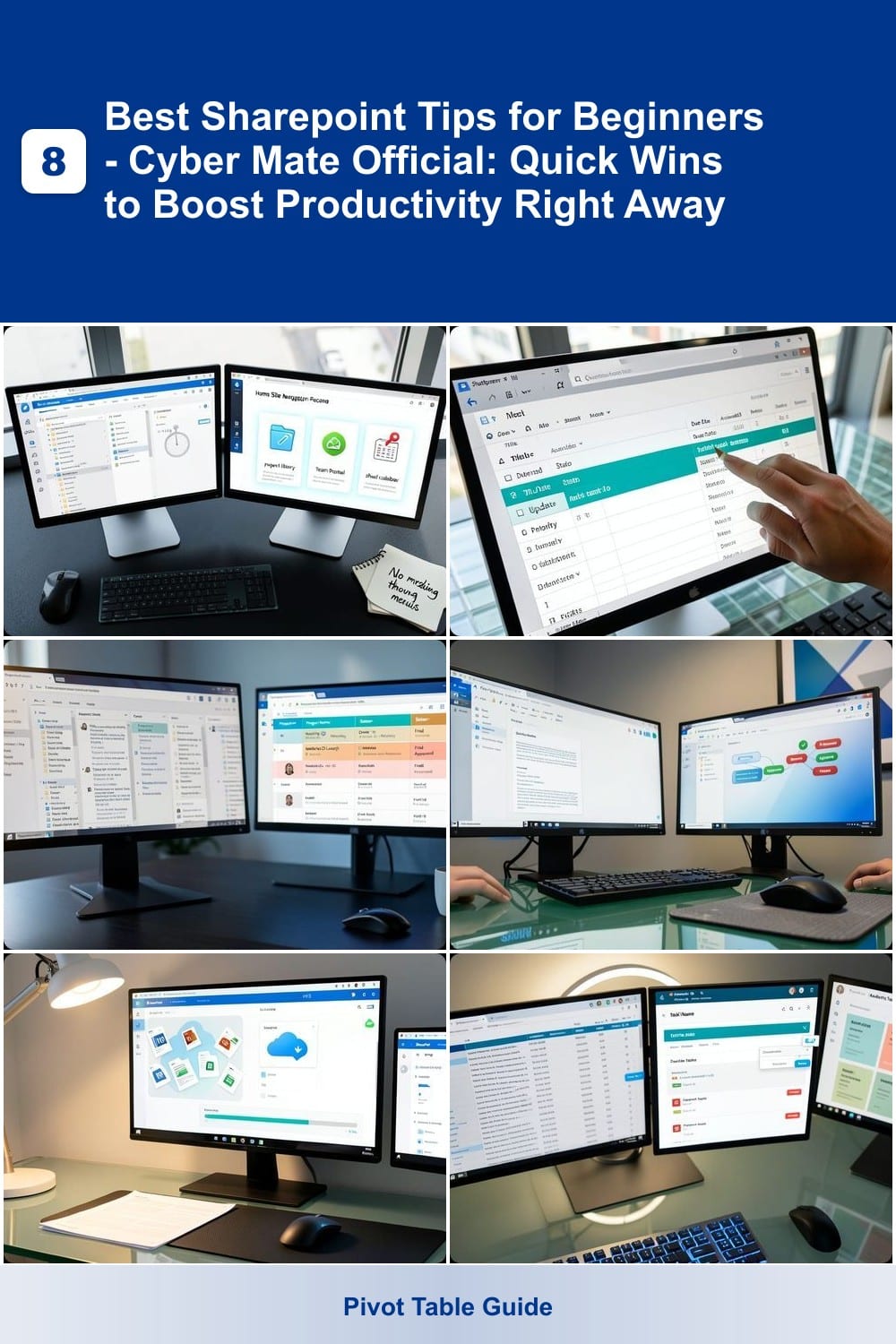
Tired of clicking through endless menus to reach your team’s most-used SharePoint sites? The Home Site Navigation feature lets you pin your top destinations—like project libraries or team portals—right at the top of your dashboard, cutting navigation time by 10+ minutes daily. No more digging through folders or remembering complex URLs.
Start by hovering over the waffle icon (☰) in the top-left corner, then click "Edit" on your Home Site. Drag-and-drop your frequently visited sites or libraries into the "Highlighted" section—these will appear as quick-access tiles. For even faster access, use the search bar (press Ctrl+F or Cmd+F) to jump directly to specific sites or files without scrolling. Pro tip: Bookmark your SharePoint Home URL in your browser for instant return trips.
This trick is a game-changer for project managers, HR teams, or anyone juggling multiple SharePoint sites. Spend less time navigating and more time collaborating—your future self will thank you! ✨
Use quick edit mode for fast data entry
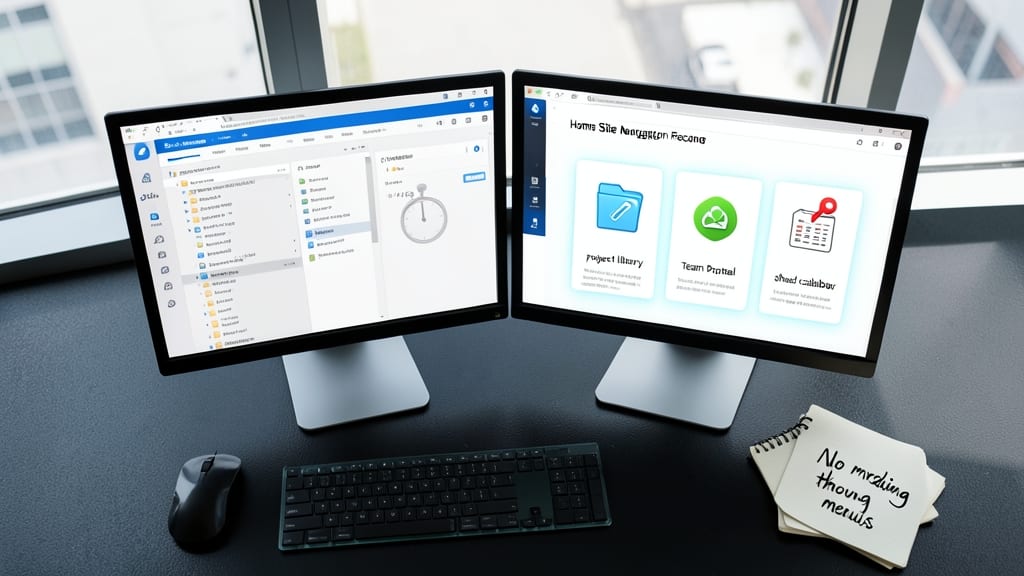
Tired of clicking through endless forms to update a simple list? Quick Edit Mode in SharePoint turns tedious data entry into a breeze—just like editing a spreadsheet, but with zero coding required.
Enable it by clicking the pencil icon in your list view, then type directly into cells to update multiple rows at once. No saving needed—changes auto-sync. Perfect for tracking inventory levels, project milestones, or employee statuses with real-time accuracy. Keyboard shortcuts (like Tab or Enter) speed it up even more.
This is your go-to for teams managing dynamic data—whether you’re a project manager tracking deadlines or a small business owner updating stock levels. ⚡
Leverage document libraries with metadata
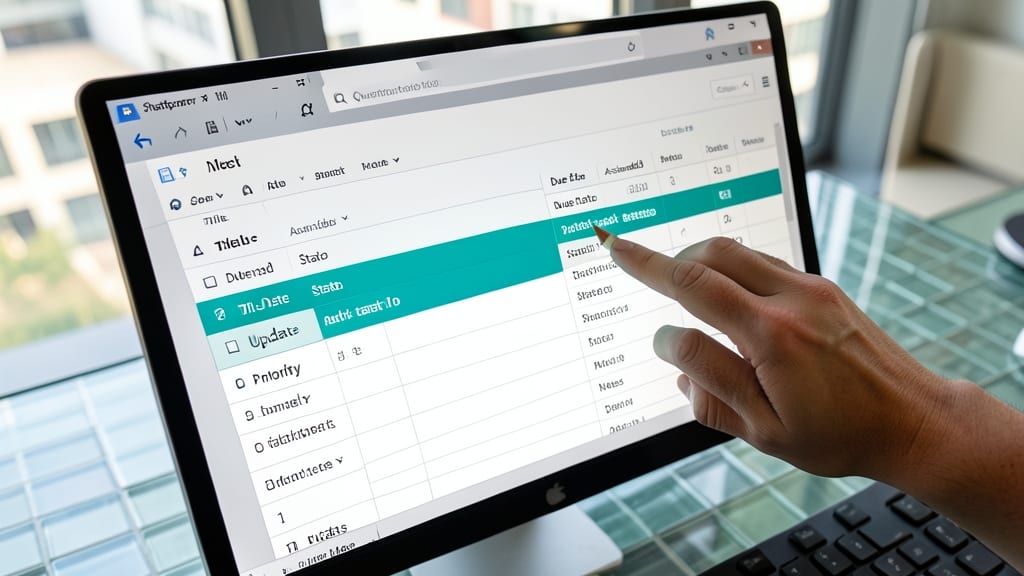
Tired of sifting through endless folders to find that one file? SharePoint’s document libraries become a powerhouse when you unlock metadata columns—custom fields like Project Name, Owner, or Status that turn chaos into clarity with a few clicks.
Start by adding columns to your library (e.g., Deadline, Priority Level, or Department). These fields let you filter files instantly—find all high-priority documents for Marketing in seconds or locate files owned by a specific team member. Combine metadata with SharePoint’s built-in search to locate files faster than ever, even in libraries with thousands of documents.
This trick is a game-changer for project managers, HR teams, or anyone drowning in shared files. Try it today and reclaim hours of lost productivity! ✨
Automate approval workflows with Power Automate
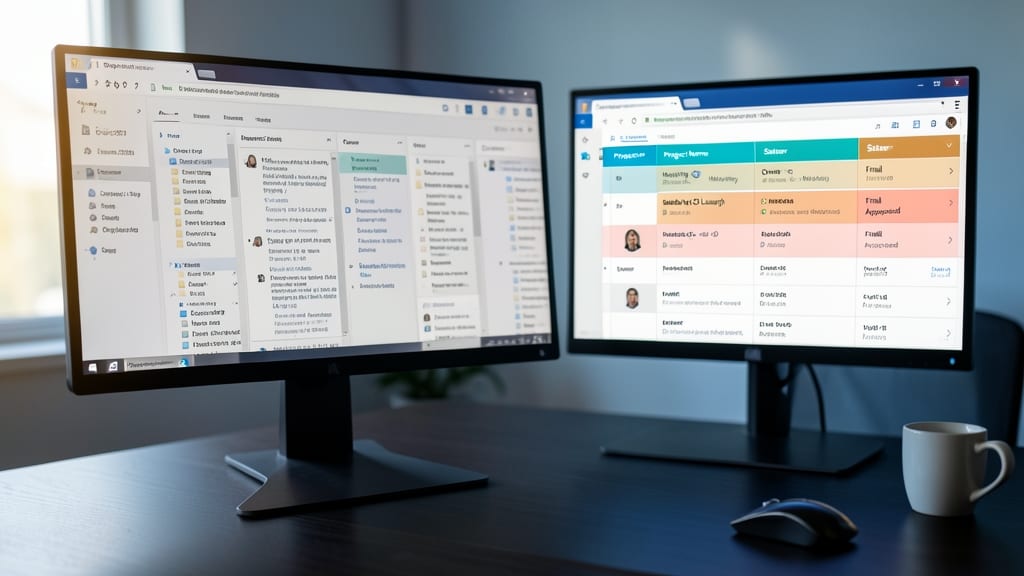
Tired of chasing down approvals via endless email threads? Power Automate integrates directly with SharePoint to create zero-config approval workflows—no coding required. Set up a flow where documents or requests trigger automated notifications to the right people, with clear "Approve" or "Reject" buttons in their inbox.
Start with a pre-built approval template in Power Automate, then customize triggers (e.g., new SharePoint list item) and recipients. Add conditional logic (e.g., escalate after 24 hours) or connect to Teams for notifications. The mobile app lets approvers act on requests from anywhere, and audit logs track every step for compliance.
This is a game-changer for HR teams managing onboarding, finance handling expense reports, or content teams reviewing drafts. Say goodbye to lost emails and hello to paperless, trackable workflows. ✨
Sync SharePoint files to your desktop
Tired of waiting for internet to reopen just to edit a file? With SharePoint’s OneDrive sync, you can mirror entire libraries to your desktop—no VPN or slow uploads required.
Start by opening the library in SharePoint, clicking the sync button (cloud icon), and selecting which folders to mirror. Changes you make offline sync automatically when you reconnect, with conflicts resolved effortlessly. The 5GB storage limit per library ensures only critical files clog your device, while version history keeps backups intact.
Remote teams, field workers, and anyone with unreliable Wi-Fi will love this—zero config needed beyond a one-time setup. ✨
Create custom views for your team’s needs
Tired of scrolling through endless lists to find what matters? SharePoint’s custom views let you filter data in seconds—no coding required. Simply drag columns, set filters (like "Overdue Tasks"), and save your view for instant access every time.
Create views for specific teams (e.g., "Marketing Tasks") or statuses (e.g., "Pending Approval") with just a few clicks. SharePoint remembers your preferences, so everyone sees only what’s relevant—no more wasted time sifting through irrelevant details. Perfect for project managers or team leads juggling multiple priorities.
This is your secret weapon for focused collaboration. Whether tracking deadlines or prioritizing action items, custom views turn chaos into clarity—without IT support. ✨
Use SharePoint alerts for real-time updates

Tired of refreshing SharePoint to catch up on changes? SharePoint Alerts deliver instant email notifications when files are edited, new items are added, or comments pop up—keeping you in the loop without lifting a finger.
Set up alerts for specific libraries, folders, or even individual files in just a few clicks. Choose from daily digests or real-time updates, and customize who gets notified (yourself, your team, or stakeholders). This feature is perfect for project managers tracking deadlines or teams relying on shared documents.
Ideal for marketing teams monitoring campaign assets or HR departments tracking policy updates, alerts ensure no critical change slips through the cracks. ⚡
Embed SharePoint content in teams chats
Tired of sending attachments that get lost in email chains? Embedding SharePoint content directly in Teams chats turns passive file-sharing into dynamic discussions—no more digging through inboxes or version confusion.
With just a few clicks, you can embed documents, lists, or even entire libraries into a Teams message, where teammates can view, comment, or edit them without leaving the chat. This works seamlessly with OneDrive and SharePoint files, and you can even preview images, PDFs, and Excel files inline. Plus, updates sync automatically, so everyone sees the latest version instantly.
Perfect for project teams, HR departments, or anyone managing shared resources—this trick cuts down on back-and-forth emails and keeps everything in one place. ⚡