
Operating System
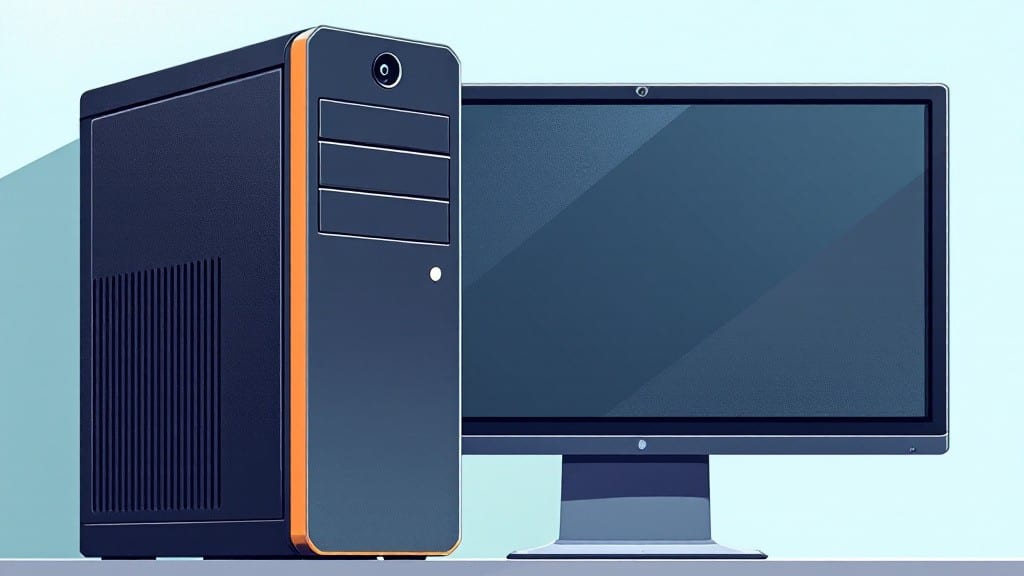
Does my computer have a camera? You can quickly check by looking for a modern laptop, 2-in-1 device, or desktop with an integrated webcam. Use Windows Device Manager, macOS System Report, or the Linux lsusb command to confirm its presence.
Most computers built in the last decade include a built-in camera, especially laptops and convertible devices where space is limited. 🔍 The placement of the lens—often near the top of the screen—is a dead giveaway, though some models hide it behind a small cover or under the keyboard.
If you're unsure, checking your system's hardware tools will reveal whether the camera is recognized by your OS, even if it's not immediately visible.
I've seen many people overlook the camera's presence until they need it for a video call, only to realize their device lacks one. That's why I always recommend checking these tools before purchasing an external webcam—it might save you money and hassle.
💡 In This Article
- How to Locate Your Computer’s Built-In Camera
- When and Why You Need a Computer Camera
How to locate your computer’s built-in camera
Most built-in cameras are integrated into the top bezel of laptops, often positioned between the screen and keyboard. On Windows machines, the Device Manager is your best friend—simply press Win + X, select Device Manager, and look under Imaging devices or Cameras.
You'll typically see entries like "Integrated Camera" or "HD Camera," which confirm the hardware's presence. 🔍 The operating system recognizes these cameras through USB drivers, even though they're physically soldered to the motherboard.
On macOS, the System Report reveals all hardware details. Open About This Mac, then select System Report and navigate to Hardware > Camera. Here, you'll find model specifics like "FaceTime HD Camera" or "iSight," along with resolution capabilities (usually 720p or 1080p).
Linux users should open a terminal and run lsusb, then look for entries like "USB Camera" or "Integrated Webcam" in the output. Some models hide the camera behind a small cover that slides open when the camera is active.
Physical indicators matter too. Most cameras have a tiny green LED that lights up when active, often located near the lens. Some premium laptops (like ThinkPads or MacBooks) place the camera at eye level for video calls, while others position it higher for privacy.
If you can't find it visually, check the manufacturer's manual—they often include a diagram showing the camera's exact location. 💡 For example, Dell laptops typically place the camera in the top-center of the screen, while HP models might position it slightly to the left.
Troubleshooting missing cameras often involves driver issues. If Windows doesn't recognize the camera, update the driver through Device Manager or use the manufacturer's support site. On macOS, ensure macOS is up-to-date, as Apple frequently improves camera compatibility.
Linux users may need to install v4l-utils and run v4l2-ctl --list-devices to confirm detection. Some cameras require enabling in BIOS—check your motherboard settings if it's a desktop with an integrated webcam.
Advanced users can verify camera functionality by running a test in software like Cheese (Linux), Photo Booth (macOS), or Camera App (Windows). If the software detects the camera but shows a black screen, the issue might be a privacy shutter blocking the lens or a faulty cable connection.
For desktops, ensure the webcam is properly connected to the motherboard's USB header. 🌐 Many modern laptops now include privacy switches that physically block the camera when toggled.
What most people don't realize is that camera quality varies wildly. A 720p camera (common in budget laptops) will deliver grainy video, while 1080p models (found in business or gaming laptops) provide sharper results.
Some high-end devices even include infrared LEDs for low-light performance. If you're unsure about your camera's capabilities, check the manufacturer's specifications or run a test in a video call app.