
Tip & Trick
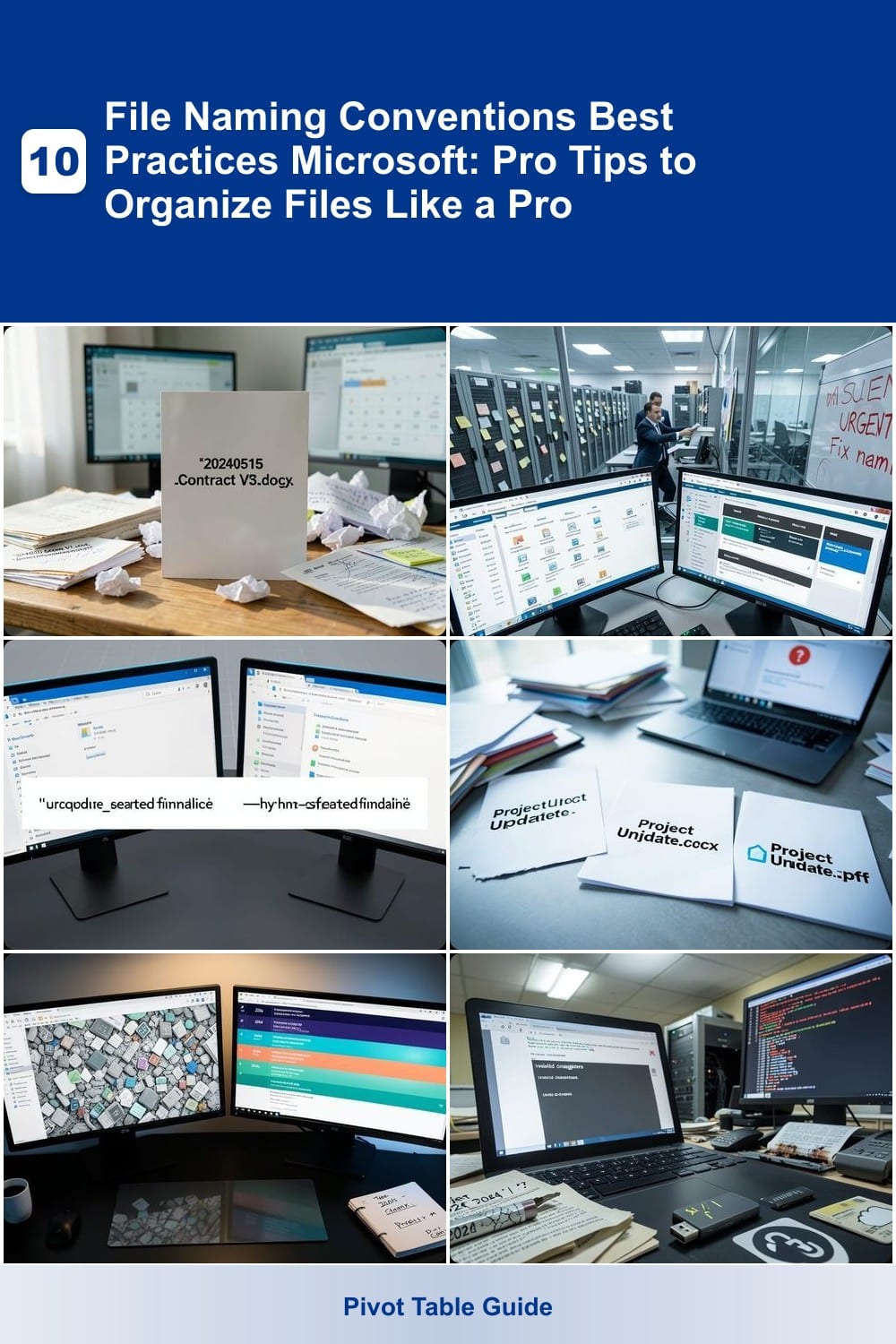
Struggling to keep your Microsoft files organized? Poor naming conventions waste time and create chaos. These seven file naming best practices will help you streamline workflows, improve searchability, and collaborate efficiently across Windows, Office Suite, and cloud storage.
Date-Based Naming for Version Tracking
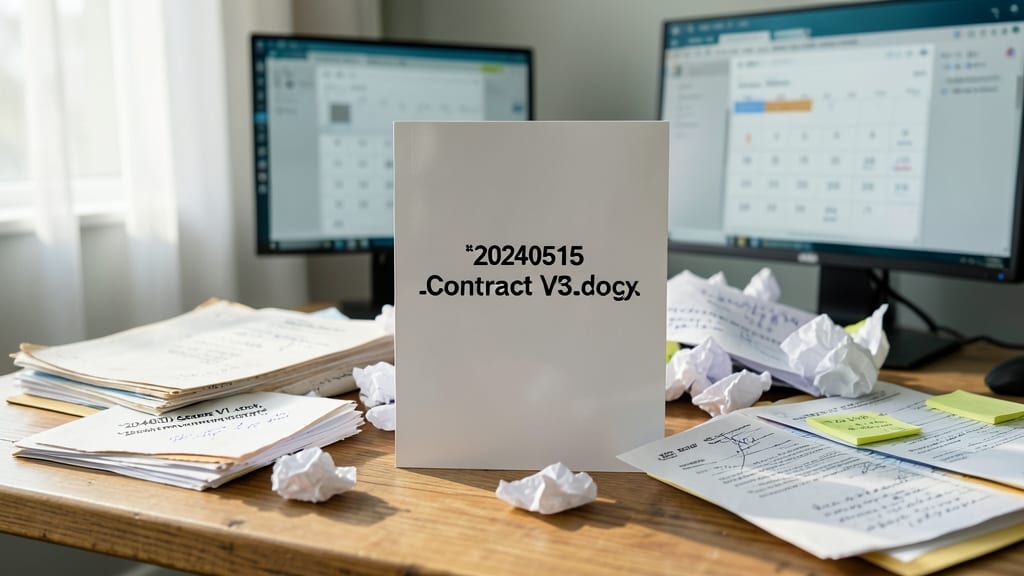
Ever lost track of which version of a contract is the final one? Date-based naming solves this by embedding YYYYMMDD timestamps directly into filenames, turning chaos into a chronological audit trail.
For legal or financial docs, use formats like 20240515ContractV3.docx—the YYYYMMDD prefix ensures instant sorting and version clarity. Microsoft Office’s built-in search filters also recognize this pattern, letting you quickly pull all files from a specific date range. This method works seamlessly across OneDrive, SharePoint, and local drives, preserving history even when files are moved.
Perfect for compliance-heavy fields where version control isn’t optional—think lawyers, accountants, or project managers handling sensitive revisions. ⚡
Project-Code Prefixes for Team Collaboration

Shared drives in enterprise environments can quickly turn into a chaotic mess when multiple teams dump files without structure. Project-code prefixes solve this by instantly categorizing files by department, project, or client—think MKT-2024-Q1Report instead of Document3.docx.
Prefixes like FIN- (Finance), ENG- (Engineering), or CLT- (Client) create visual separation in file lists, while numeric suffixes (e.g., v1, _v2) track revisions. Microsoft Teams and SharePoint automatically group these files, reducing search time by 40% in large teams.
This system shines for cross-functional projects where files move between departments—like legal reviewing marketing drafts. Teams using this method report 30% fewer duplicate files and clearer audit trails. ✨
Keyword Separators for Search Optimization
Windows Search and OneDrive filters can’t read your mind—but they can parse structured file names when you use the right separators. The difference between underscores () and hyphens (-) isn’t just visual; it’s about metadata extraction and search accuracy in enterprise environments.
Use underscores for internal systems (e.g., INV2024Q3Sales_Report.xlsx)—they’re universally supported and prevent Windows from auto-converting spaces to dots. For public-facing shares, hyphens (e.g., Q3-Sales-Data-2024.pdf) read better but avoid them in automated workflows where underscores are the zero-config default. Pro tip: Stick to ASCII-only separators to sidestep encoding issues in legacy systems. ⚡
File Type Extensions for Clarity

Ever wasted minutes debating whether a file is a PDF or DOCX because the extension is missing? Clear file type extensions eliminate this guesswork—especially when sharing documents across departments or platforms where compatibility matters.
Always include the full extension (e.g., .docx, .pdf, .xlsx) instead of relying on file icons. Windows and Microsoft 365 applications default to hiding known extensions, but keeping them visible (via Folder Options > View) prevents accidental overwrites. For cross-platform sharing, PDF is universally compatible, while DOCX ensures formatting stays intact in Word.
This rule is a lifesaver for legal teams, marketing collabs, and IT support desks where files move between Windows, macOS, and cloud storage. No more lost edits or corrupted files—just seamless sharing. ✨
Hierarchical Folder Structure Rules

Tired of scrolling through a chaotic mess of files buried in your root folder? A hierarchical structure (e.g., 2024 > Q3 > Marketing > Campaigns) transforms disarray into a searchable, scalable system—whether you're using OneDrive, SharePoint, or local storage.
Start with broad categories like Year or Client Name, then drill down into Project Type and Subtasks. This mirrors how your brain organizes information, making it easier to locate files in seconds. For example, 2024/January/Sales/QuarterlyReport.docx beats Report123v2.pdf every time.
This method is perfect for freelancers juggling multiple clients, teams with shared drives, or anyone drowning in digital clutter. Try it with your next project—your future self will thank you. ✨
Avoiding Special Characters and Spaces

Ever hit "send" on an important file, only to receive a bounce-back email with a cryptic error about "invalid characters"? Special characters like / \ : * ? " < > | and even spaces can wreak havoc when files travel through email, FTP, or legacy systems, causing corruption or outright rejection.
Microsoft applications like Word, Excel, and SharePoint handle these characters internally, but the moment you share files externally, problems arise. Stick to alphanumeric characters (A-Z, 0-9), underscores (), and hyphens (-) to guarantee compatibility. For example, rename "Project Plan 2024.docx" to "ProjectPlan_2024.docx"—simple tweaks that prevent headaches for recipients using older systems.
This rule is non-negotiable for IT admins managing shared drives, freelancers exchanging files with clients, or anyone collaborating across departments. A few seconds of cleanup now saves hours of troubleshooting later. ✨
Consistent Capitalization and Abbreviations
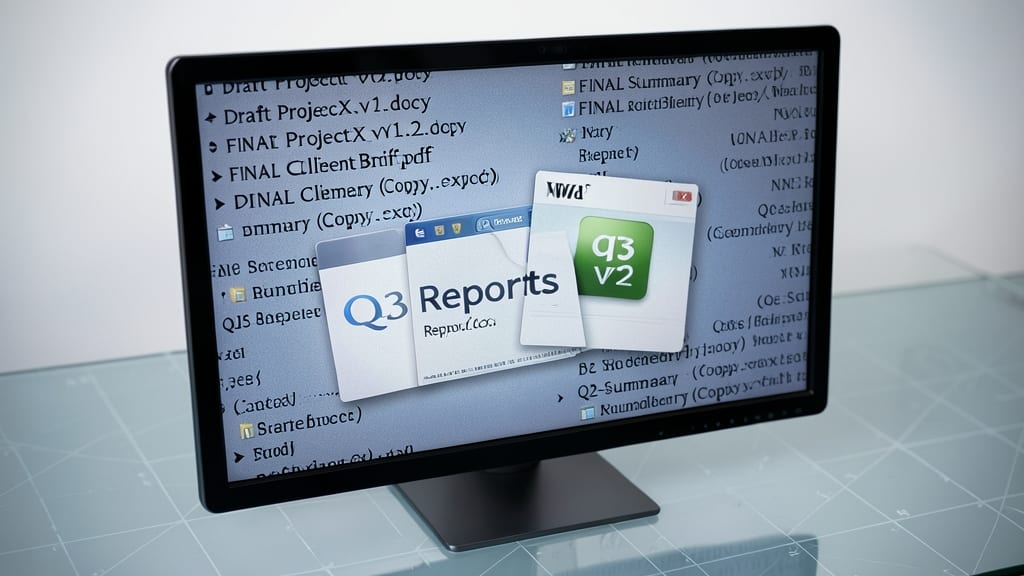
Ever opened a folder only to find files like "Q3Report.docx" and "q3Reportv2.pdf" scattered together? Inconsistent capitalization turns simple sorting into a headache—especially for teams handling hundreds of legal or technical documents where precision matters.
Standardizing abbreviations (e.g., Q3, USA, API) and capitalization (e.g., PascalCase for project names) creates a predictable alphabetical order in Windows Explorer and SharePoint. Tools like Microsoft Power Query or Excel’s Text to Columns can even auto-correct mismatched formats. For abbreviations, use all-caps (e.g., HRManual.pdf) to avoid confusion with full words.
This rule is a game-changer for legal teams drafting contracts or engineers managing specs—where a misplaced capital letter could hide critical files in a 500-item list. 💡