
PowerPoint
Struggling to make your PowerPoint presentations flow smoothly? These seven transition effects will elevate your slideshows from basic to polished, helping you engage audiences and deliver professional-level presentations with ease.
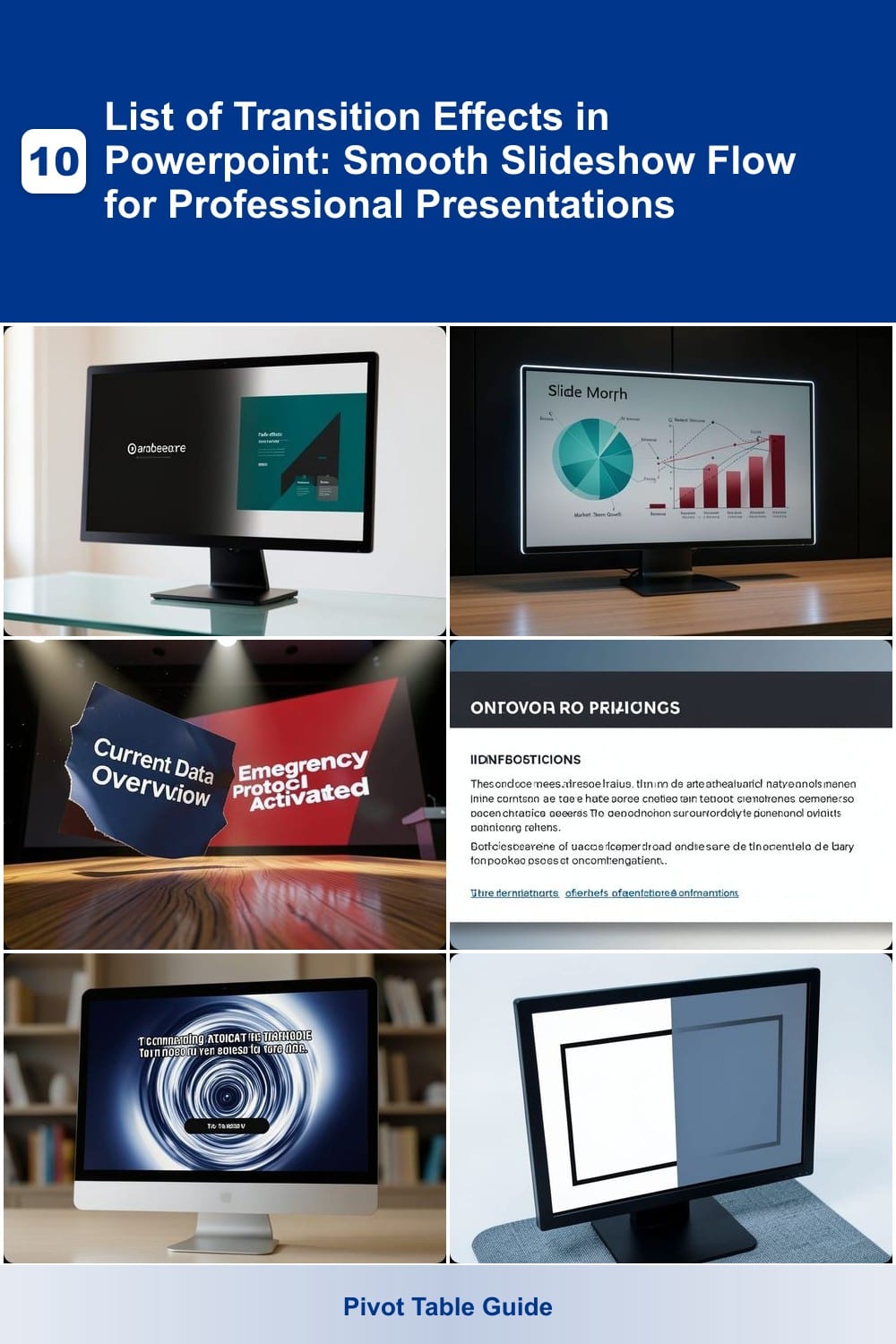
Fade Transition for Elegant Slide Changes
Want to keep your business presentation looking polished without distracting from your content? The Fade transition delivers a timeless, professional effect that works seamlessly across every slide theme—no matter how minimalist or bold.
This classic transition smoothly dissolves one slide into the next, creating a subtle yet sophisticated shift that feels intentional. Unlike flashy animations, the Fade effect maintains focus on your message while adding a touch of elegance. It’s universally compatible with PowerPoint 2016, 2019, and 365, ensuring consistency across versions.
Perfect for corporate pitches, investor decks, or academic lectures, this transition subtly signals a new topic without overwhelming the audience. 💡
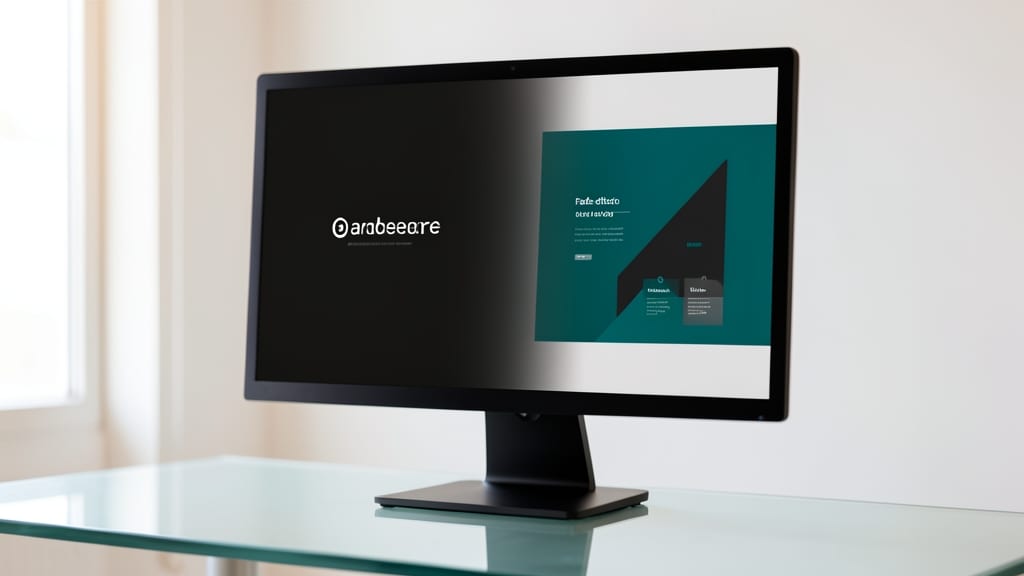
Slide Morph for Dynamic Content Transitions
When your slides are packed with complex data—like evolving financial projections or shifting market trends—Slide Morph turns static charts into dynamic visual stories. Unlike static fades, this transition lets you smoothly animate the content itself, transforming pie charts into bar graphs or text blocks into bullet points with fluid precision.
PowerPoint’s Slide Morph (introduced in 2016) uses Morph Target technology to align elements before transitioning, ensuring text, shapes, and colors morph seamlessly. You can even adjust the transition speed (0.5x to 4x) or add sound effects for emphasis. For analysts, this means showing year-over-year comparisons as a single, cohesive animation—no awkward cuts or disjointed slides.
Perfect for financial analysts, researchers, or educators presenting data trends, Slide Morph keeps audiences engaged without sacrificing clarity. Just avoid overusing it—save this tool for moments where the data needs to breathe. ✨
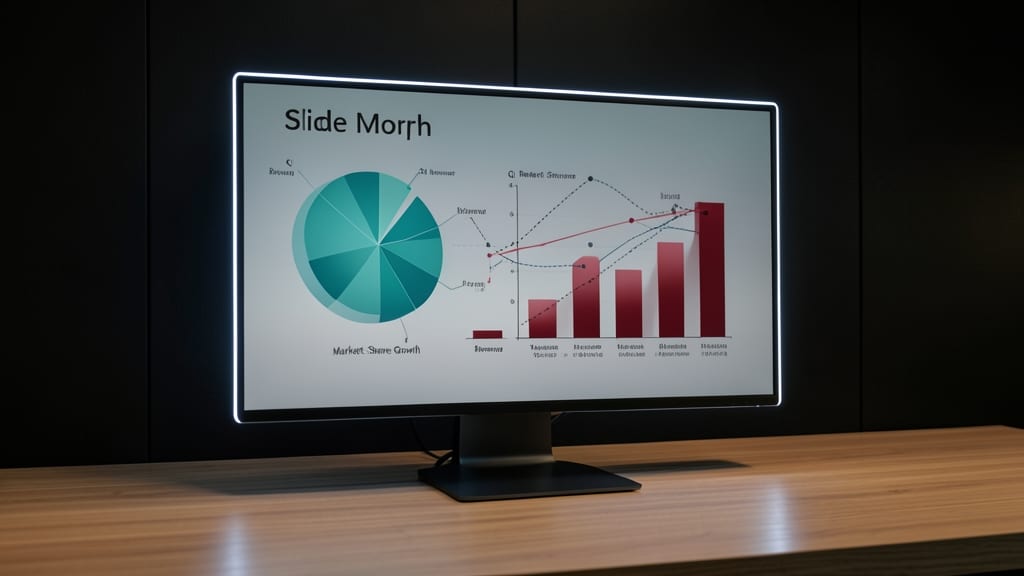
Push Transition for Bold Visual Impact
When you need to command attention mid-presentation, the Push Transition delivers a cinematic punch that feels like a scene change in a blockbuster. Unlike subtle fades or morphs, this effect physically "pushes" one slide off-screen to reveal the next—creating urgency and visual drama.
Available in PowerPoint 2016 and later, it offers four directional options (left, right, up, down) and customizable speed (slow to fast). Pair it with a sound effect (like a subtle "whoosh") to amplify the impact—perfect for keynote moments where you want your audience leaning forward. The bold motion works best with high-contrast slide designs.
Ideal for TED-style talks, creative pitches, or training sessions where you’re transitioning to a critical message. Just avoid overusing it—save this high-energy effect for your biggest reveals. ✨
Wipe Transition for Clean Section Breaks
Need a sharp, polished break between sections in your presentation? The Wipe Transition delivers a clean, directional shift—like turning a page in a professional report—without overwhelming your audience. Unlike flashy morphs or pushes, this transition uses a straight-line wipe (horizontal, vertical, or diagonal) to signal a deliberate transition between ideas.
Available in six directions (left, right, up, down, and two diagonal variants), it’s fully customizable with speed adjustments and sound effects in PowerPoint 2016 and later. The effect works seamlessly with any slide theme, making it a go-to for academic lectures or corporate overviews where structure matters more than spectacle.
Perfect for educators, trainers, or executives who prioritize clarity over flash. Use it to separate your introduction from key findings or case studies from conclusions—the wipe’s precision keeps focus on your message. ✨
Zoom Transition for Emphasizing Key Slides
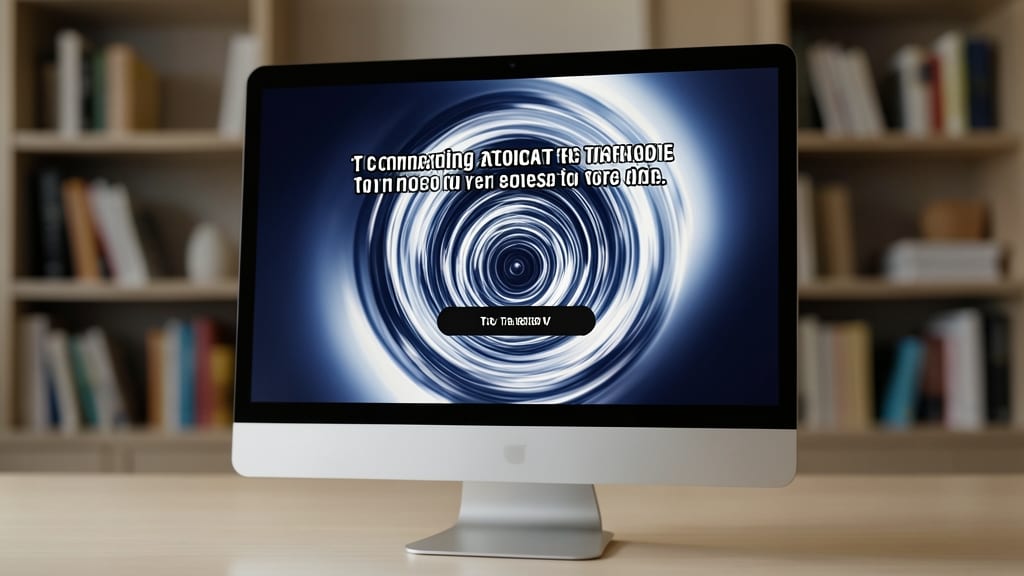
When you need to command attention during a presentation, the Zoom Transition is your secret weapon. Unlike subtle fades or structured wipes, this effect magnifies or shrinks slides to create a dynamic focal point—ideal for driving home key messages like testimonials or call-to-action slides.
You can customize the zoom direction (in or out), speed, and even add a subtle glow for extra emphasis. Works seamlessly in PowerPoint 2016, 2019, and 365, and pairs perfectly with high-contrast layouts to make critical content pop without overwhelming the audience.
Sales teams and trainers will love this for highlighting ROI case studies or training milestones, while marketers can use it to draw eyes to promotional slides. Just don’t overuse it—save it for moments that truly need impact! ✨
Box In/Box Out for Structured Transitions
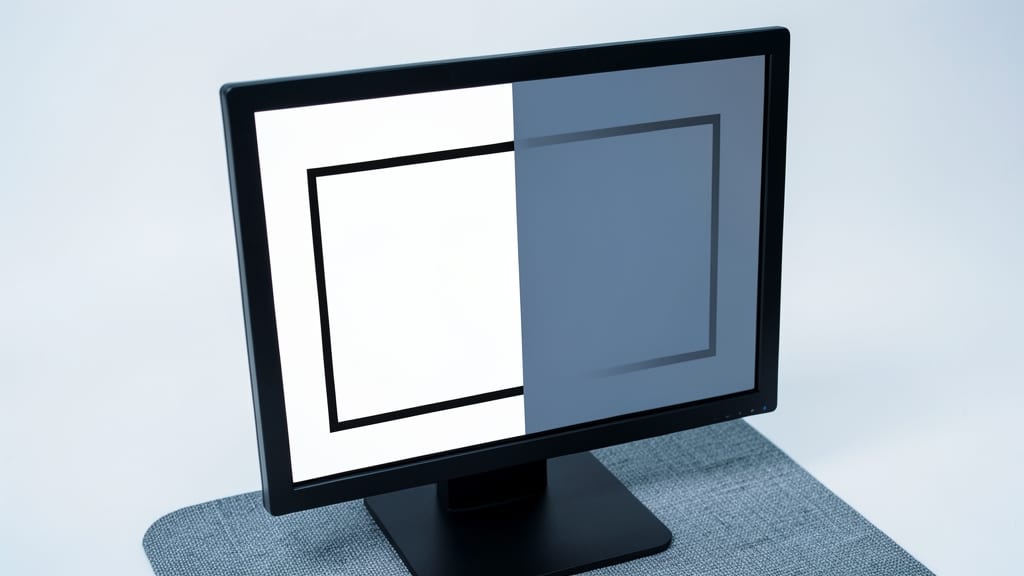
When your presentation demands clarity over flair, the Box In/Box Out transition delivers a clean, geometric break between slides. Unlike fluid morphs or dramatic pushes, this effect uses a squared border that either frames the outgoing slide ("Box In") or reveals the incoming one ("Box Out"), creating a visually structured progression.
The transition’s precision makes it perfect for technical walkthroughs or step-by-step guides, where you want to emphasize sequential logic. You can adjust the box size, speed, and direction (left/right/top/bottom) to match your layout, and it pairs seamlessly with grid-based designs or process diagrams. For developers or educators, this ensures your audience stays locked onto your content—not the visual gimmicks.
Ideal for training manuals, API documentation, or engineering demos, this transition keeps the focus on your message while adding a subtle layer of professionalism. 💻
Random Bars Transition for Creative Presentations
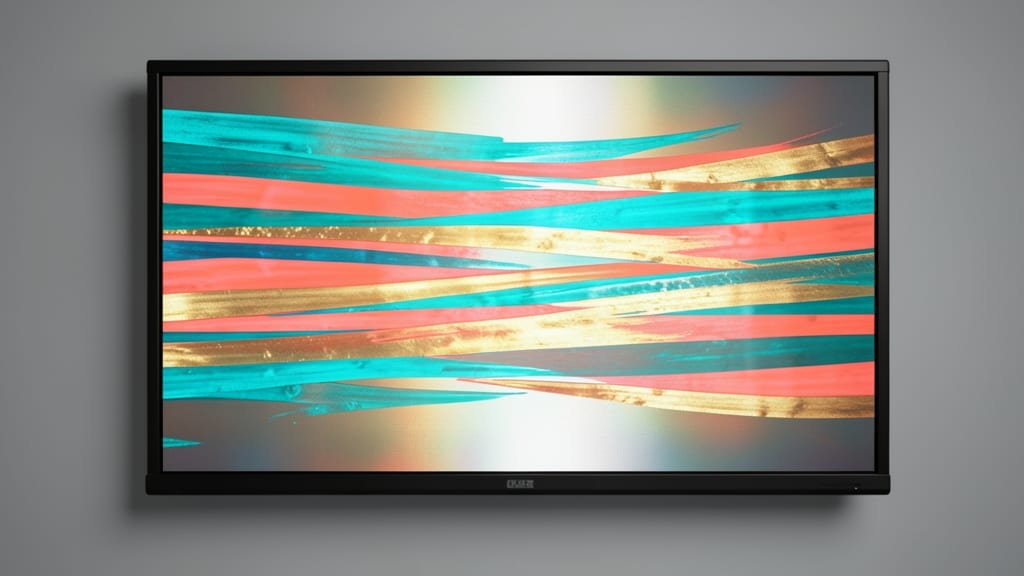
Tired of predictable slide transitions? The Random Bars effect turns your presentations into a visual playground with its dynamic, unpredictable energy. Instead of smooth fades or structured wipes, this transition uses colorful horizontal bars that sweep across the screen in random patterns, creating a lively, artistic shift between slides.
You can customize the speed and color scheme to match your presentation’s vibe, making it perfect for creative projects, youth workshops, or brainstorming sessions. Unlike traditional transitions, this one ensures no two slides feel the same, keeping your audience engaged and your content fresh.
Ideal for artists, educators, or marketers who want to break the mold, this transition is your secret weapon for sparking conversation and making ideas pop. ✨