
Software
Microsoft Edge isn’t just a browser—it’s a powerhouse packed with hidden features to boost speed, security, and productivity. These seven pro-level tips will transform your browsing experience, whether you're a casual user or a power user looking to squeeze every ounce of performance from your system.
Enable Edge’s Immersive Reader for Focused Reading
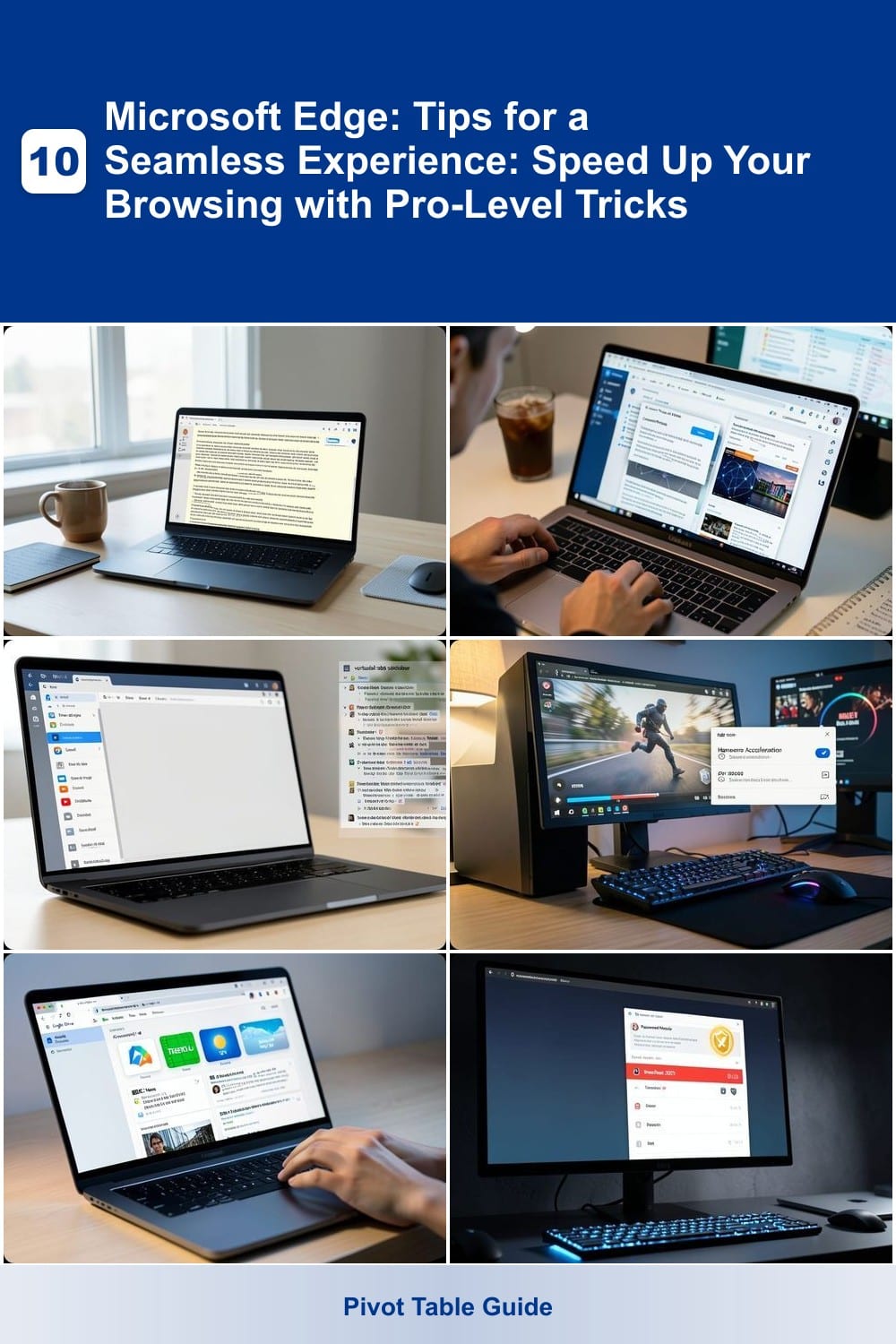
Drowning in dense research papers or struggling to focus on long-form articles? Microsoft Edge’s Immersive Reader transforms overwhelming text into a distraction-free, customizable experience—perfect for students, researchers, or anyone who reads for work.
With just one click, this tool strips away ads, sidebars, and clutter, presenting content in a clean, high-contrast layout with adjustable font sizes (up to 24pt) and dyslexia-friendly options like OpenDyslexic fonts. The line focus feature highlights one line at a time to reduce eye strain, while text-to-speech lets you listen instead of read. It even translates articles into 100+ languages on the fly.
Ideal for late-night study sessions or marathon reading, Immersive Reader syncs across devices and works with PDFs, web pages, and Office docs. Give it a try—your eyes (and productivity) will thank you. ✨
Use Collections to Organize Research Like a Pro
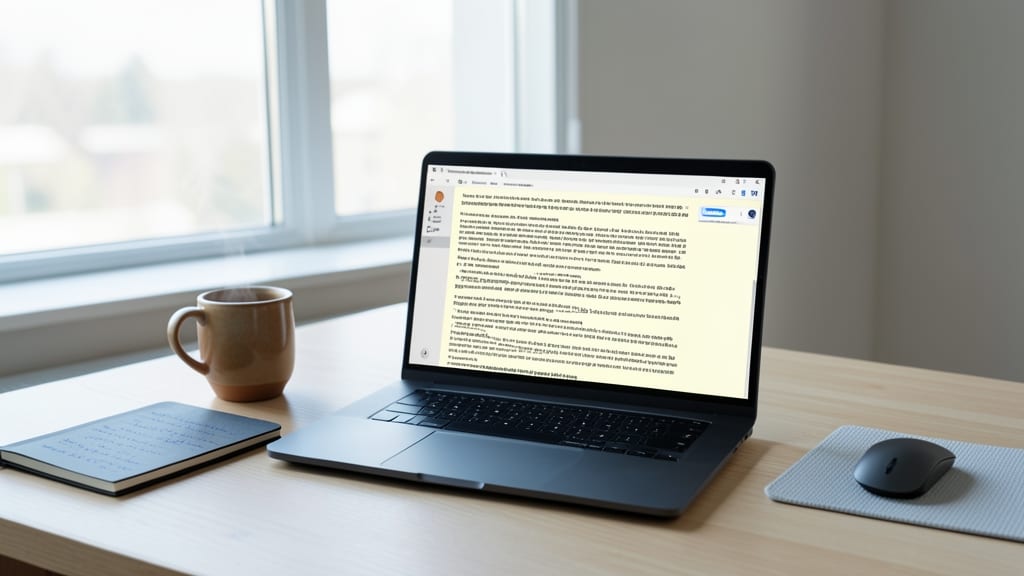
Tired of losing tabs or drowning in browser chaos while researching? Microsoft Edge’s Collections feature turns your browser into a digital research hub—no more scattered bookmarks or endless scrolling.
With just a few clicks, you can clip text, images, and full web pages into organized collections, then add notes or highlights directly in the browser. The searchable database means finding that one article from months ago takes seconds, not hours. Sync across devices so your work follows you seamlessly.
Perfect for students writing papers, developers tracking code snippets, or project managers compiling client notes—this tool replaces sticky notes and PDF chaos with a zero-config, cloud-backed system. ✨
Boost Performance with Vertical Tabs
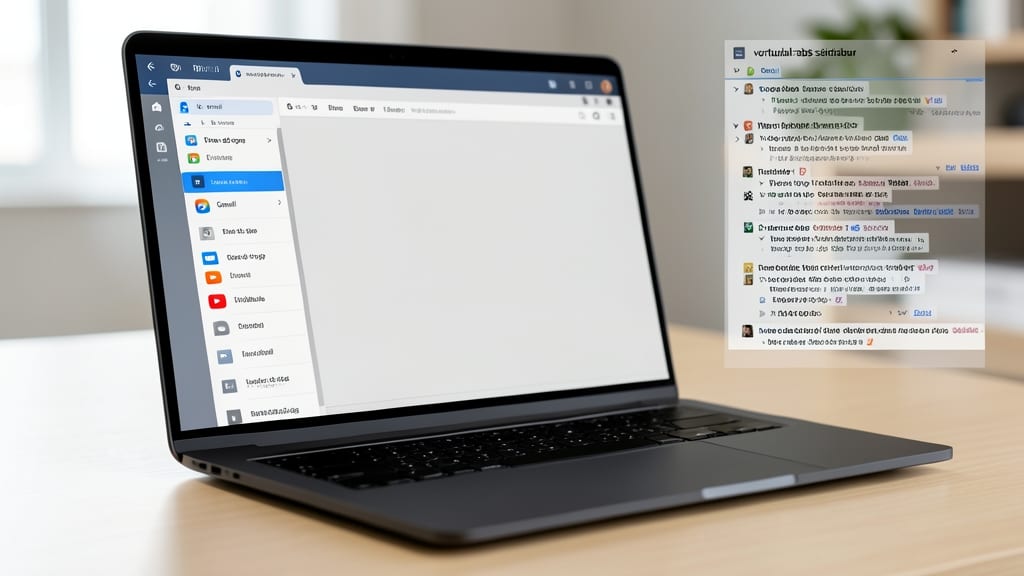
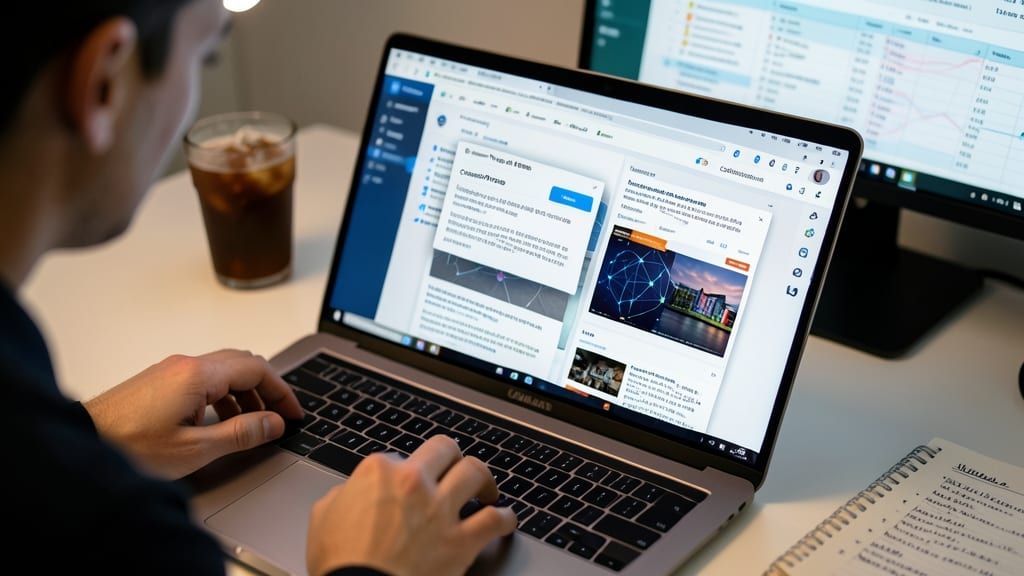
Tired of wasting screen space on endless horizontal tabs? Microsoft Edge’s vertical tabs feature transforms multitasking by stacking tabs neatly in a sidebar, so you can see all your open pages at once without scrolling. This sleek design keeps your workspace clutter-free while making it effortless to switch between projects.
To enable it, type edge://flags/#edge-vertical-tabs in the address bar, then hit Enter and toggle the switch. Once active, you’ll love the hover preview feature—just glide your mouse over a tab to see a live thumbnail of the page. It’s perfect for developers juggling code repos, designers comparing color palettes, or anyone drowning in research tabs.
This feature is a lifesaver for users with smaller screens or those who prefer minimalism. Try it out and reclaim your desktop real estate! ⚡
Enable Hardware Acceleration for Faster Loading
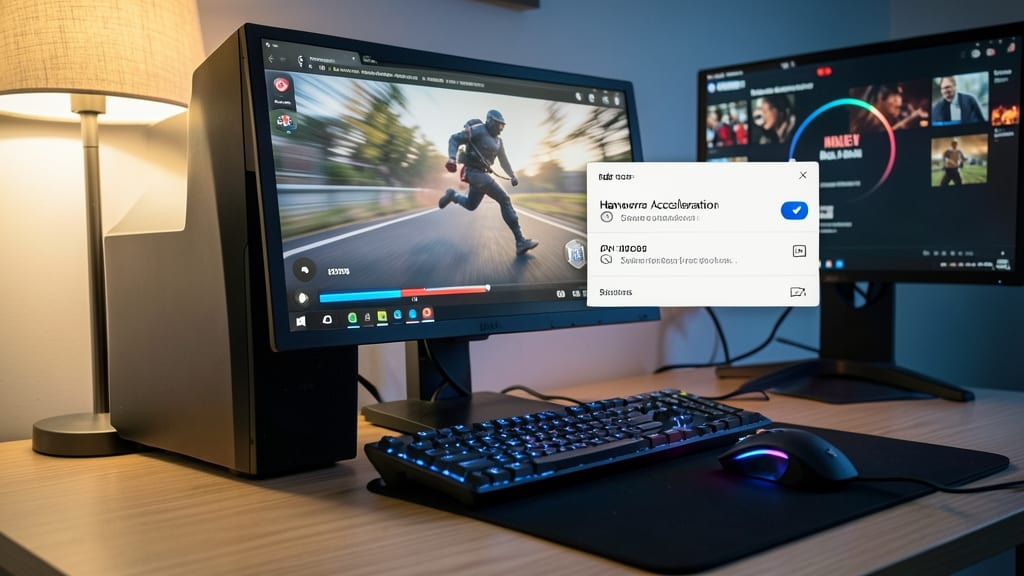
If your older PC struggles with laggy videos or slow page loads, hardware acceleration in Microsoft Edge could be your secret weapon. This setting leverages your GPU to handle rendering tasks, freeing up your CPU for smoother performance—especially on sites like YouTube or Netflix.
To enable it, head to Edge Settings > System > Performance and toggle "Use hardware acceleration when available." For users with integrated graphics (like Intel UHD) or mid-range GPUs, this can reduce stuttering by up to 30% while browsing. Just ensure your GPU drivers are up-to-date for best results.
This tweak is ideal for anyone with a 5-10-year-old PC or limited CPU cores, turning frustrating buffering into seamless streaming. ⚡
Customize Your Start Page for Productivity
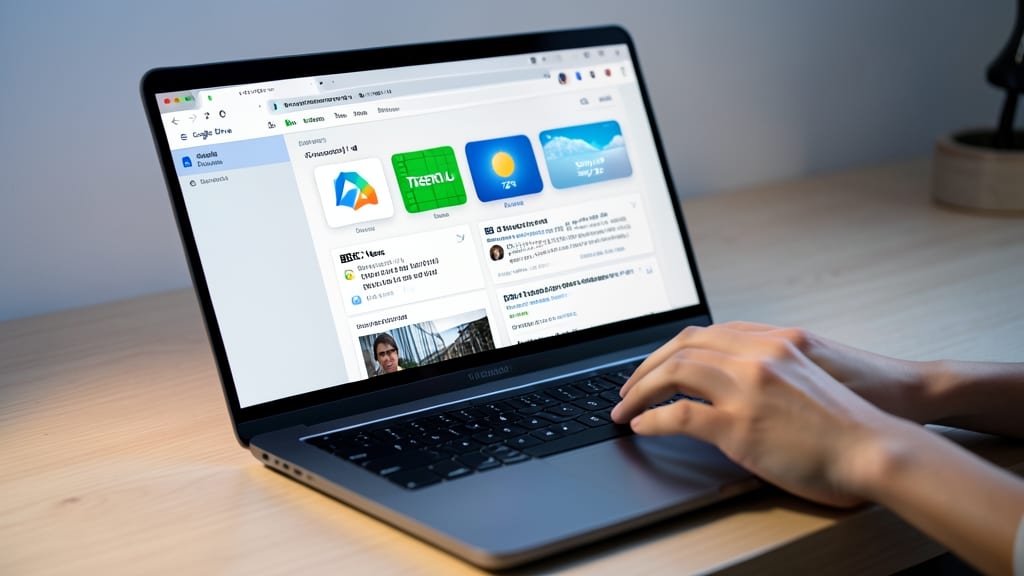
Tired of cluttered tabs slowing you down? Microsoft Edge’s customizable start page turns your homepage into a productivity hub—no extra tabs needed. Pin your most-used sites (like Google Drive or Trello), add weather widgets, and even embed news feeds (think BBC or your favorite tech blogs) for a one-stop dashboard.
With zero-config setup, you can drag-and-drop tiles to rearrange your layout in seconds. The live tiles update in real-time—check stock prices, weather, or headlines without leaving your start page. For power users, the news feed integration pulls curated content directly from Microsoft’s sources, saving you from opening multiple tabs.
Perfect for freelancers, remote workers, or anyone juggling multiple accounts—this feature turns your start page into a mission control center for daily tasks. ⚡
Secure Your Browsing with Password Monitor
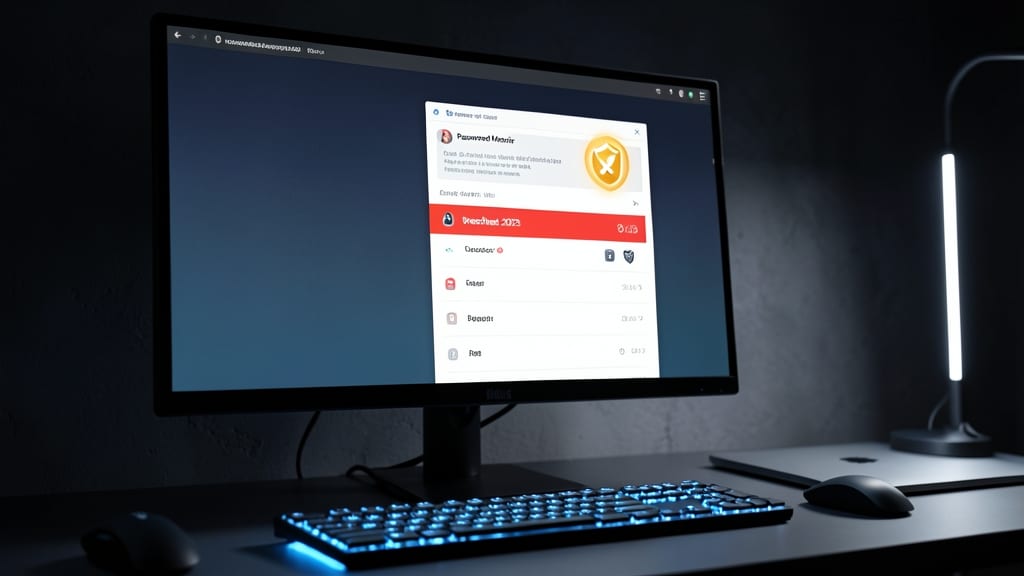
Worried about your saved passwords falling into the wrong hands? Microsoft Edge’s Password Monitor acts as your digital security guard, scanning your stored credentials against millions of known breaches in real time. No third-party tools needed—just built-in protection that alerts you if any of your accounts are compromised.
When a breach is detected, the tool flags the affected password and suggests a strong, unique alternative to replace it. You can also generate new passwords directly from the dashboard with a single click, ensuring every account has a robust defense. The feature syncs across devices, so your security stays consistent whether you’re on your phone or desktop.
This is a non-negotiable for anyone managing multiple online accounts—from social media to banking. With cyber threats evolving daily, Password Monitor gives you peace of mind without sacrificing convenience. 💡
Leverage Edge’s Built-in VPN for Safe Public Wi-Fi
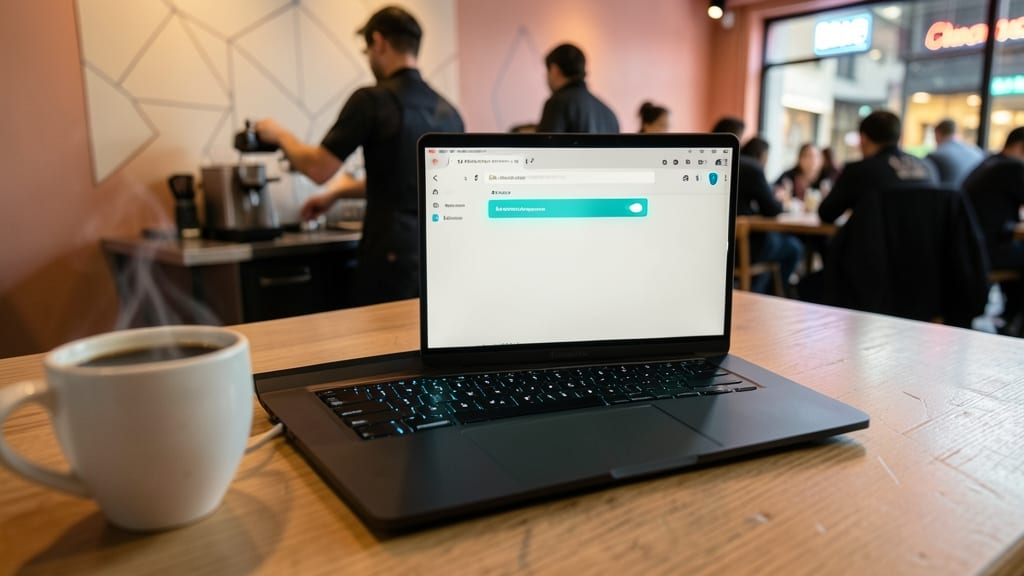
Ever logged into a café’s Wi-Fi only to panic about potential snoopers? Microsoft Edge’s built-in VPN eliminates that worry by encrypting your traffic with a single click—no extra apps or subscriptions needed.
This lightweight VPN uses AES-256 encryption (the same standard used by banks) and connects to servers in 10+ locations worldwide, including the U.S., UK, and Japan. It’s automatically triggered on public networks and won’t slow down your browsing, thanks to Microsoft’s optimized infrastructure. Just toggle it on in the address bar’s security icon, and you’re protected.
Perfect for digital nomads, remote workers, or anyone using hotel Wi-Fi—this feature gives you peace of mind without sacrificing convenience. 🌟