
Software
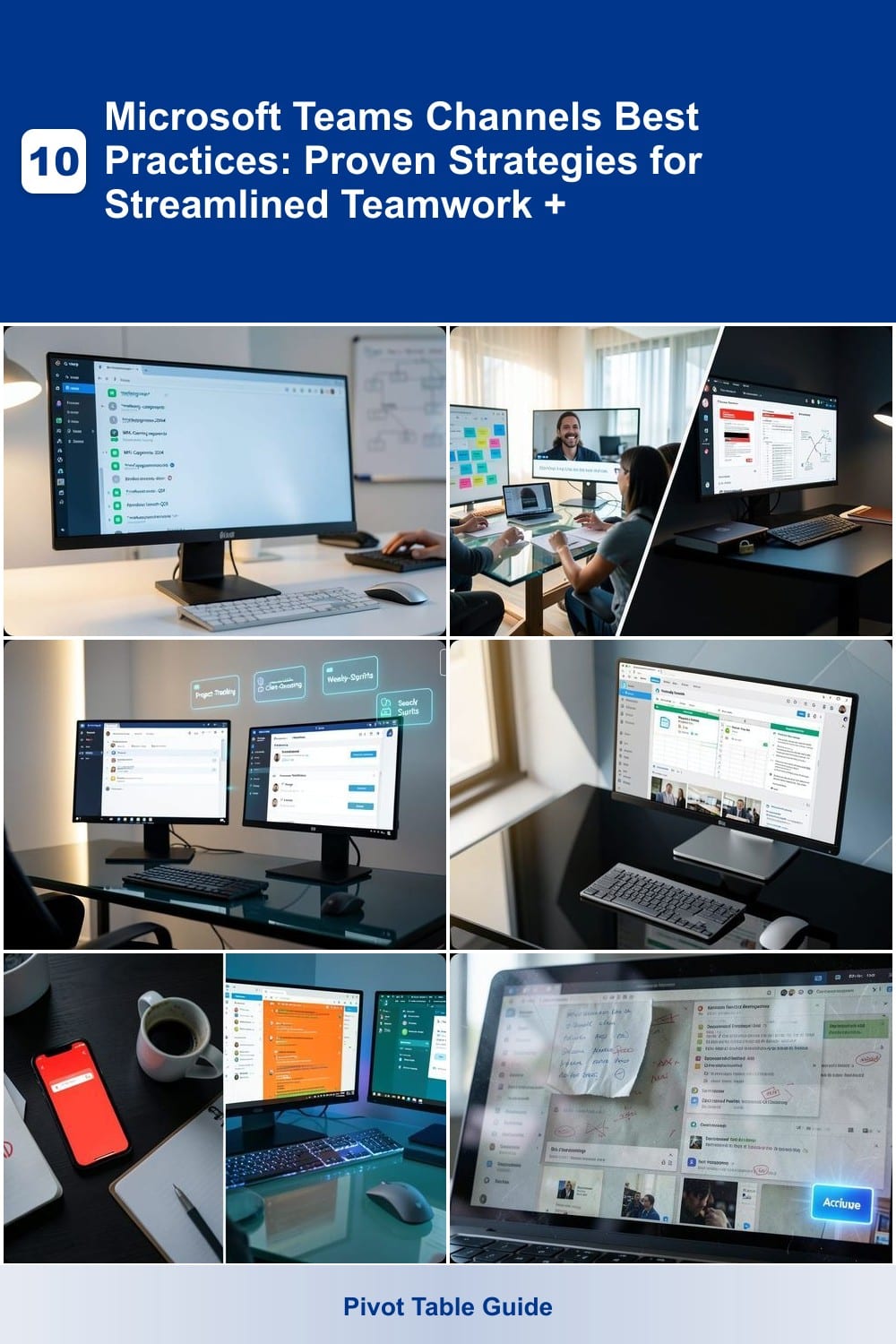
Microsoft Teams channels can make or break team productivity. These 10 proven best practices will help you organize workflows, reduce clutter, and ensure seamless collaboration across your organization—whether you're managing a remote team or optimizing internal communication.
Standardize Channel Naming Conventions
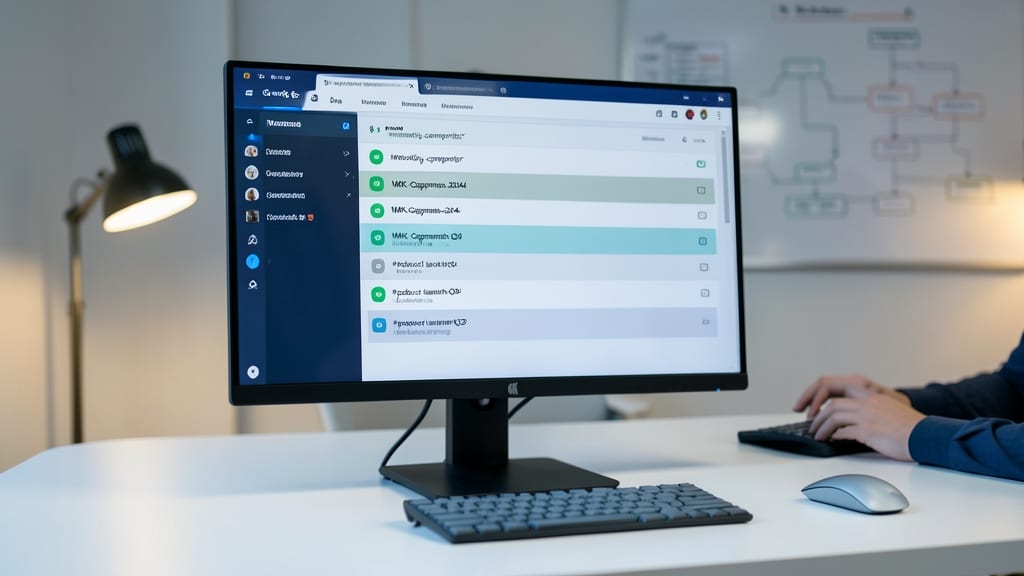
Imagine scrolling through your Teams sidebar and instantly recognizing every channel—no more guessing whether #marketing-campaigns or MKT-Campaigns-2024 holds the latest assets. A standardized naming convention eliminates that frustration by creating a visual language your entire team can follow.
Start with a clear structure like DEPT-Purpose-Year (e.g., FIN-Invoices-Q1 or HR-Onboarding-2024). Use consistent abbreviations (e.g., MKT for Marketing, ENG for Engineering) and avoid vague names like General or Random Stuff. For cross-department projects, prefix with X- (e.g., X-ProductLaunch) to signal collaboration. Pro tip: Add a channel description template in your team’s onboarding docs to reinforce the standard.
This system shines for teams with 50+ members or those juggling multiple departments—like sales coordinating with product teams. It cuts down on duplicate channels, speeds up onboarding, and makes channel searches 10x faster when you need to find exactly what you’re looking for. 💻
Use Private Channels for Sensitive Projects

Not every discussion needs to be public—especially when handling proprietary data, legal documents, or financial projections. Microsoft Teams’ private channels let you restrict access to sensitive topics while keeping broader team updates visible in public channels, creating a secure yet collaborative workspace.
To set one up, navigate to your team’s channel list, click the three dots, and select Add channel. Enable Private during setup, then manually add only the members who need access. Unlike public channels, private ones don’t appear in the global search—only for approved members. This ensures confidential discussions (e.g., R&D roadmaps or client NDAs) stay out of prying eyes while general team updates flow freely in public channels.
This setup is perfect for legal teams drafting contracts, finance groups reviewing budgets, or R&D squads brainstorming patentable ideas. By default, private channels require admin approval to join, adding an extra layer of security without complicating workflows. 🔧
Leverage Channel Templates for Repetitive Workflows
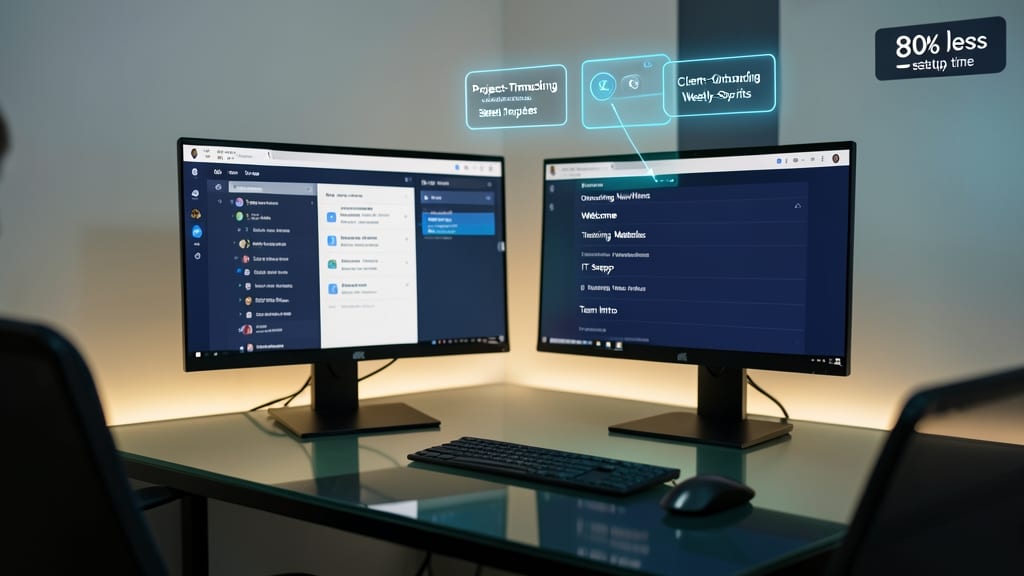
Tired of recreating the same channel structure every time you onboard new hires or launch a project? Microsoft Teams’ channel templates let you save and reuse proven layouts—like Onboarding-NewHires or Project-Tracking—in seconds, cutting setup time by 80%.
Simply create your ideal channel once, then save it as a template in the Teams Admin Center. When you need to replicate it—whether for IT support tickets, client onboarding, or quarterly reviews—just select the template during channel creation. Pre-configured tabs (e.g., Planner, SharePoint, or Forms) and pinned files ensure consistency across teams. Best of all, templates sync with Microsoft 365 Groups, so permissions and memberships transfer automatically.
This is a game-changer for HR teams managing onboarding, IT support handling ticket workflows, or project managers launching recurring initiatives. No more reinventing the wheel—just deploy battle-tested setups with one click. ✨
Pin Essential Files and Links
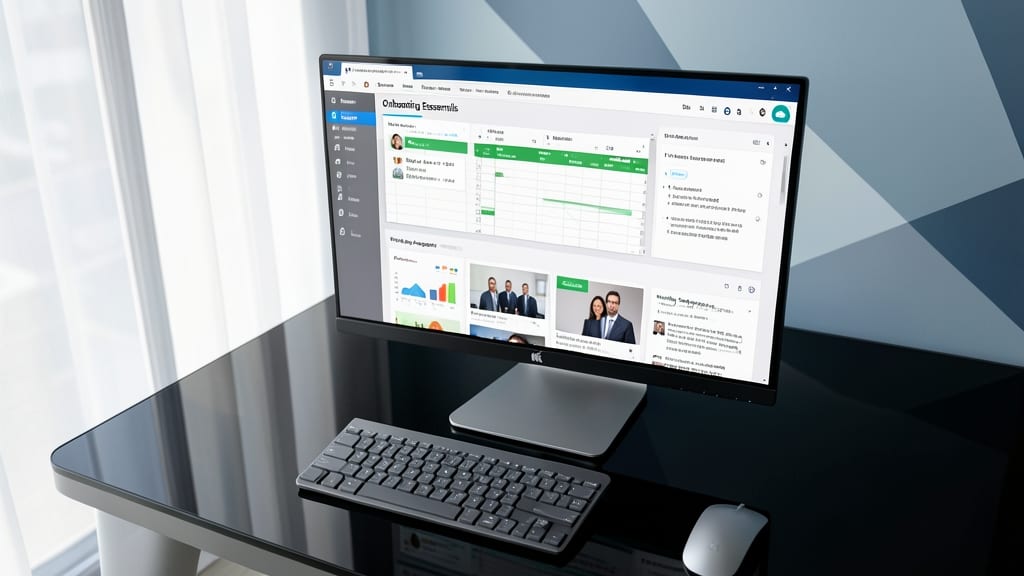
New team members shouldn’t waste their first hour digging through files—pinning essential resources in Teams channels ensures critical documents like project briefs, meeting notes, and SharePoint links stay front and center.
You can pin up to 10 tabs per channel, including Word docs, Excel spreadsheets, OneNote pages, and even external links. This feature works seamlessly with SharePoint integration, so updates to files automatically reflect in the pinned tab. The visual hierarchy makes it effortless for anyone to access what they need without scrolling.
Perfect for onboarding, client projects, or cross-functional teams where quick access to reference materials cuts down on repetitive questions. ⚡
Enable Channel Notifications Strategically

Sales teams chasing hot leads or support agents fielding urgent tickets know the pain of notification overload. Microsoft Teams lets you tame the chaos by customizing alerts per channel—so you only hear what matters, when it matters.
Start by adjusting notification levels in channel settings (click the three dots > Manage channel > Notifications). Choose @mentions only for low-priority channels or all new content for critical updates like client calls. For high-volume channels, enable digest emails to batch alerts without missing key messages. Pro tip: Use keyword filters (e.g., "urgent" or "action required") to auto-prioritize urgent tickets in support channels.
This setup works best for fast-response teams where context-switching costs time. Sales reps tracking deals can silence generic channel chatter while keeping lead updates front-and-center. ⚡
Archive Inactive Channels Quarterly

Fast-moving agile teams often drown in a sea of outdated channels—completed projects, old brainstorms, and abandoned discussions that clutter your workspace. Microsoft Teams’ archive feature lets you clean up these digital ghosts without losing data, turning chaos into a lean, searchable knowledge base.
To archive a channel, simply right-click it in your team list, select Archive, and confirm. Archived channels remain searchable and accessible for up to 30 days, giving your team time to retrieve files before they’re permanently removed. This simple action slashes cognitive load by reducing the number of active channels you see daily—imagine cutting 50% off your channel list in one quarterly sweep.
Perfect for product teams, marketing squads, or any group juggling multiple sprints, archiving keeps your workspace focused on what matters now while preserving institutional knowledge. Set a calendar reminder to tackle this every three months—your future self will thank you. ✨
Assign Channel Owners for Accountability
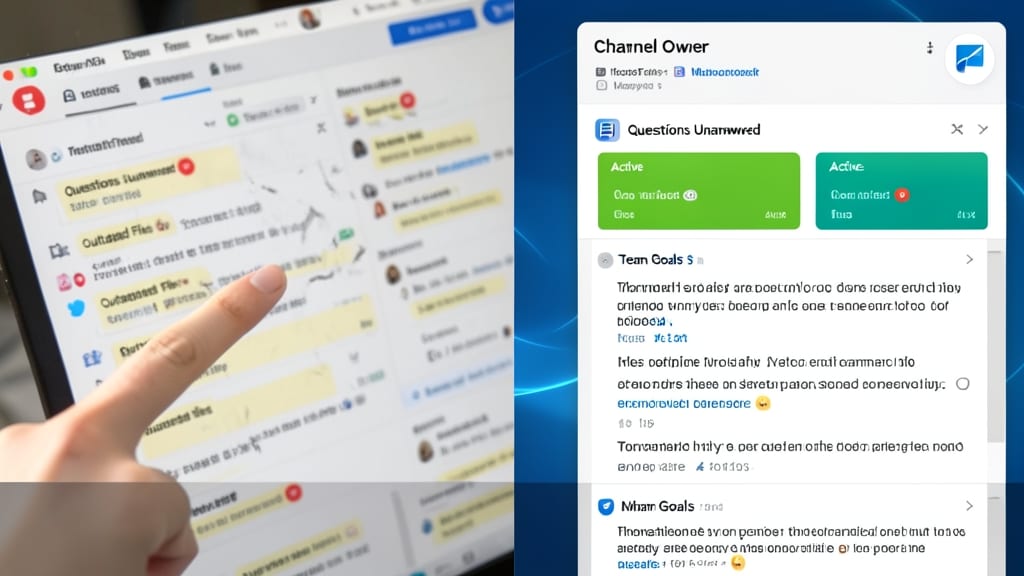
Ever scrolled through a Teams channel only to find outdated files, unanswered questions, and no clear direction? Assigning channel owners solves this by giving one person responsibility for moderation, updates, and enforcement—keeping discussions active and aligned with team goals.
In Teams, owners can edit channel descriptions, pin important files, and set guidelines (like "no off-topic posts") via the Manage Channel tab. This prevents "orphaned" channels where no one takes ownership. The role also lets them restrict access or archive inactive discussions—critical for teams with 50+ members or cross-department workflows.
This works best for project teams (e.g., marketing campaigns) or decentralized departments (like IT support hubs). By naming owners upfront, you avoid the chaos of abandoned channels and ensure accountability—without micromanaging. ✨
Use Tab Groups for Focused Collaboration
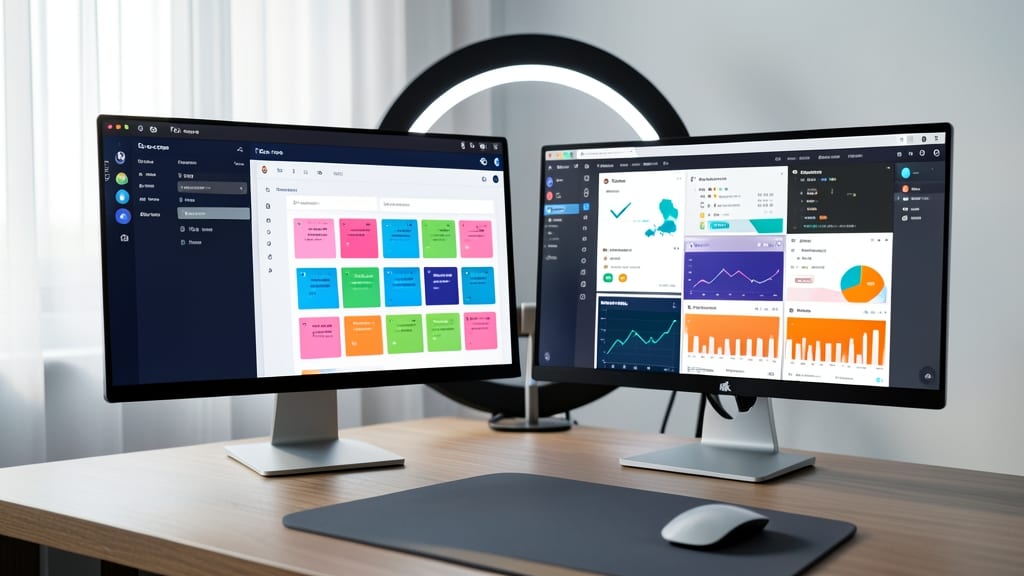
Juggling multiple tools in one workflow? Tab Groups in Microsoft Teams let you consolidate apps like Planner, Power BI, and social media dashboards into a single, organized view—no more tab-hopping between windows. This feature is a game-changer for teams that rely on cross-functional tools, especially marketing groups managing campaigns, analytics, and content simultaneously.
Create custom groups (e.g., "Content Creation" with Canva and Trello or "Analytics" with Power BI and Excel) and switch between them with a click. The drag-and-drop interface makes it easy to rearrange tabs, and you can even pin frequently used groups to the top for instant access. Best of all, these groups sync across devices, so your setup stays consistent whether you're at your desk or on the go.
Marketing teams, creative agencies, and data-driven departments will love this feature—it turns chaos into clarity by keeping all your essential tools in one place. ⚡
Implement a Channel Review Process

When your Teams workspace starts feeling like a digital landfill—with duplicate channels, outdated descriptions, and topics that no longer align with your workflow—it’s time for a structured review. A quarterly channel audit (or bi-annual for fast-moving teams) ensures your workspace stays lean, searchable, and aligned with current priorities.
Start by identifying inactive channels (no posts in 3+ months) and duplicate topics (e.g., "Marketing-Ideas" vs. "Brainstorm-Marketing"). Use Teams’ channel analytics to spot underused spaces, then merge or archive them. Update descriptions to reflect current goals—this helps new hires and cross-team members instantly grasp a channel’s purpose. For scaling teams, automate reminders via Microsoft Planner or Power Automate to keep reviews on schedule.
This process is a game-changer for growing teams (50+ members) or departments with frequent reorgs. By cutting clutter, you’ll slash confusion and boost engagement—no more lost conversations or redundant discussions. ✨
Integrate Third-Party Apps for Extended Functionality
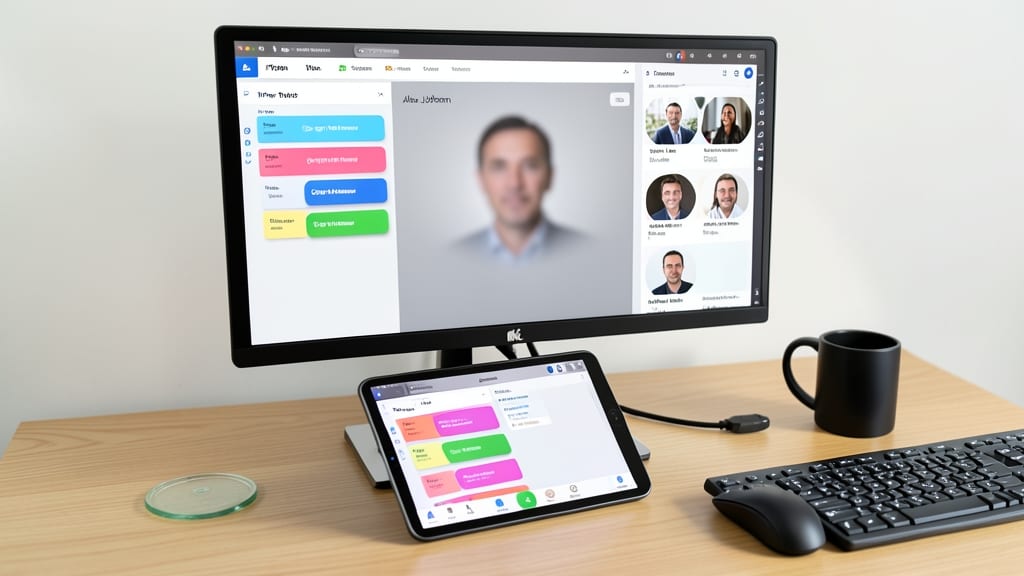
Tired of juggling multiple apps for project management, video calls, and communication? Microsoft Teams’ third-party app integrations let you consolidate workflows without leaving the platform. With over 200+ apps available—from Trello for task tracking to Zoom for video meetings—you can turn Teams into a one-stop hub for hybrid teams.
Set up Trello boards directly in a channel to visualize project progress, embed Slack messages for cross-team chats, or launch Zoom meetings with a single click. The zero-config setup for many apps means you’re up and running in minutes, while deep linking ensures seamless transitions between tools. For example, a sales team can track deals in HubSpot while discussing strategy in Teams—all in one place.
This is a game-changer for remote or hybrid teams who rely on external tools but hate context-switching. With single-sign-on (SSO) support and admin-controlled permissions, you can also maintain security while boosting collaboration. ✨